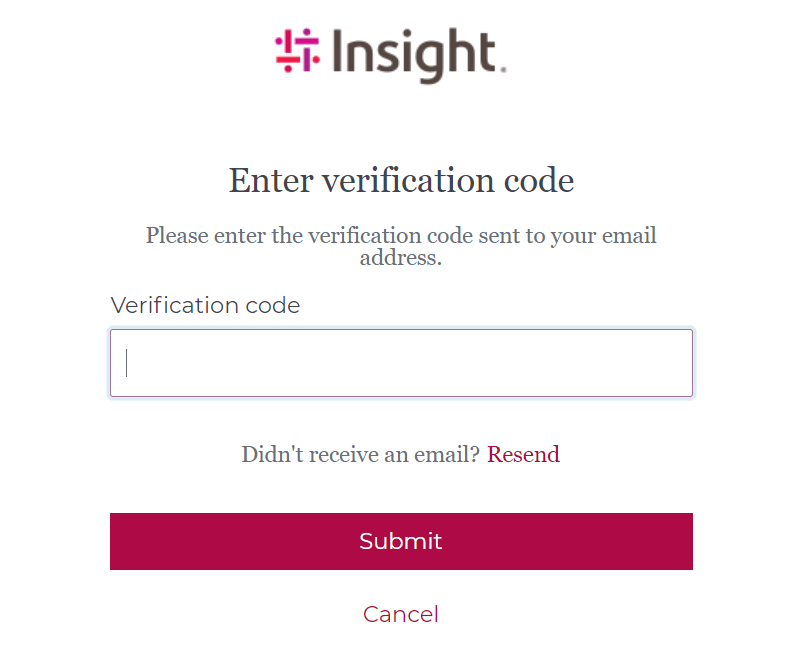
Knowledge base Multi-Factor Authentication Device Management
By Insight Editor / 6 Nov 2024 / Topics: Featured
- Log in to your insight.com account.
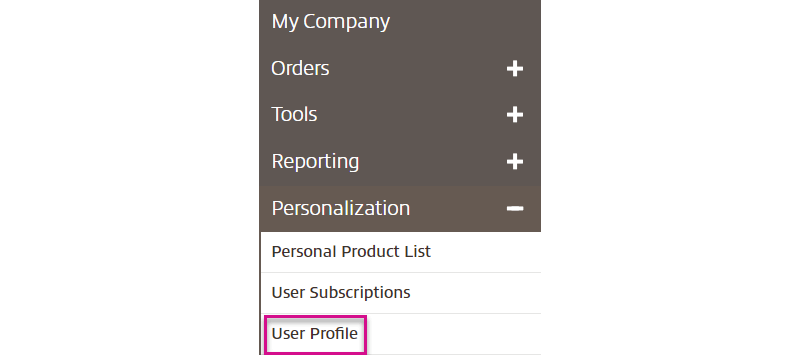
- Navigate to Personalization and select User Profile.
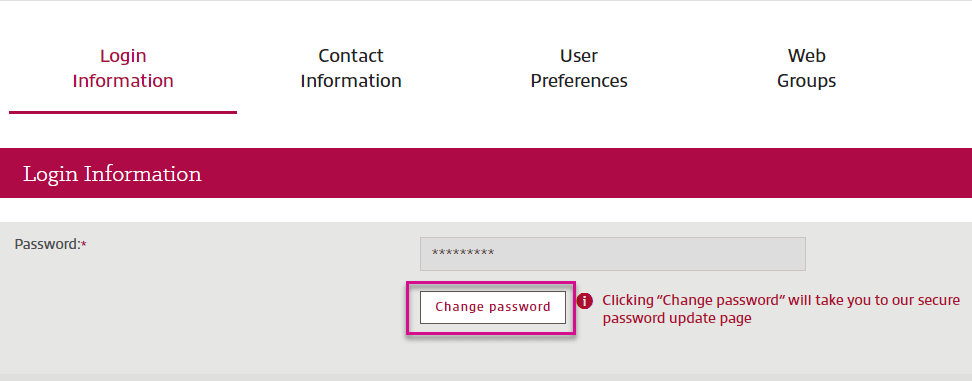
- Navigate to Login Information and select Change Password.
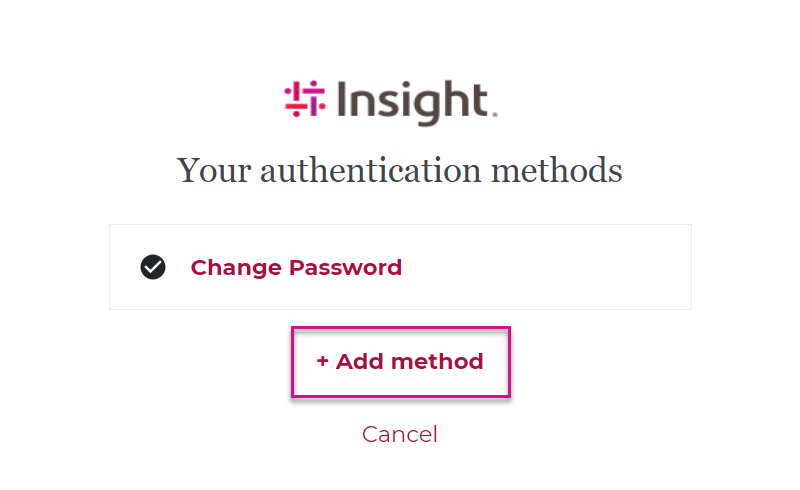
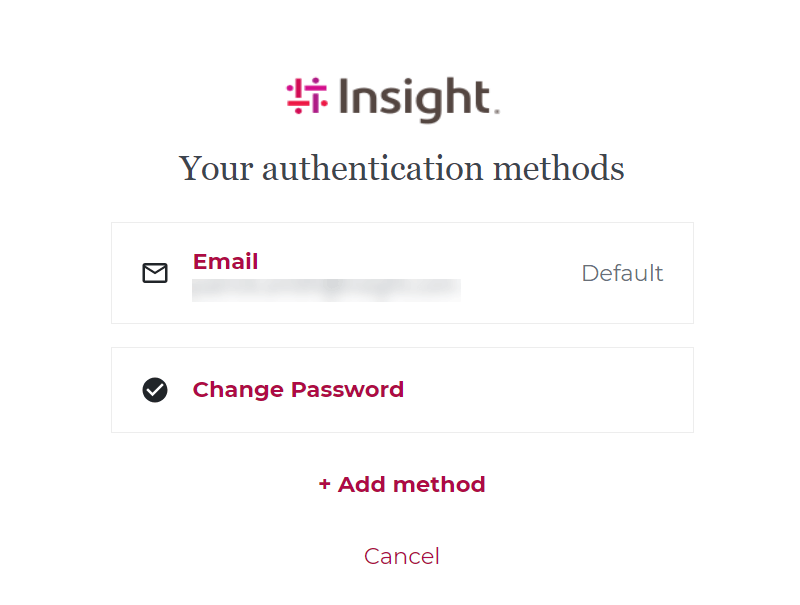
- After selecting change password, you will be taken to the Device Management screen.
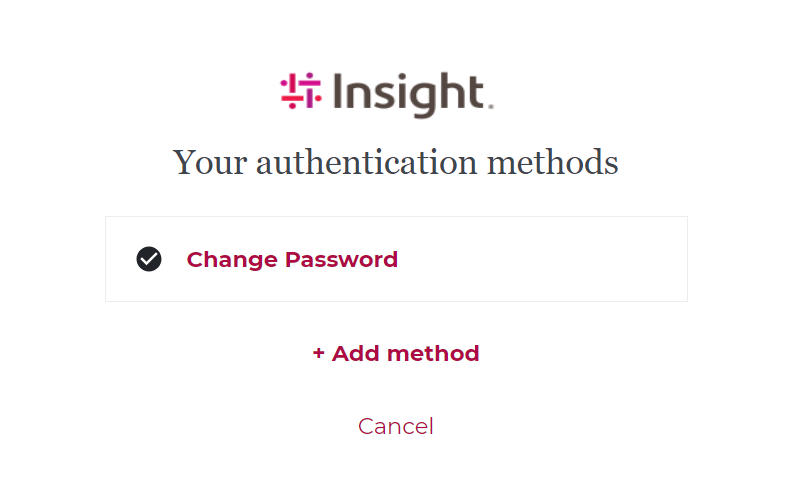
- Select Add method.
- You will be presented with several options for authentication method.
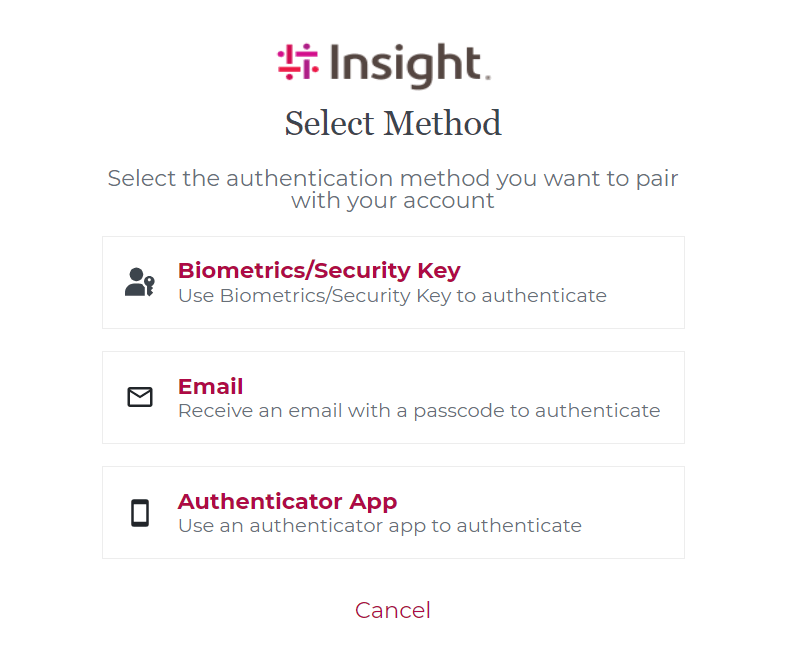
Authentication Methods
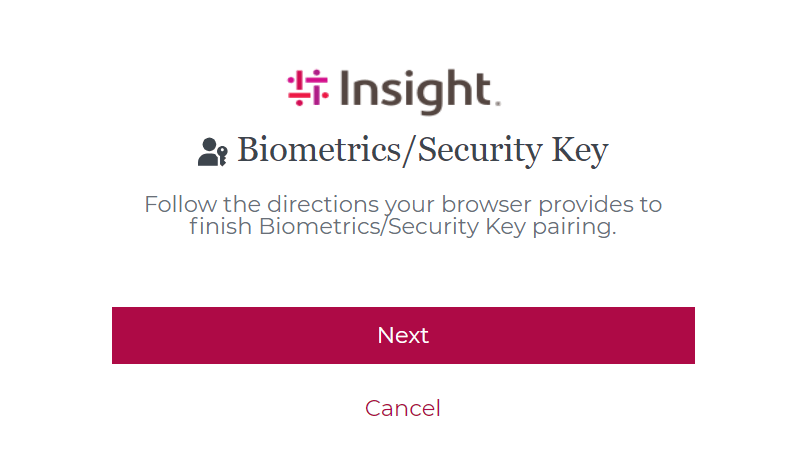
- For each method, follow the prompts on screen to enroll your preferred authentication method
- Biometrics/Security Key
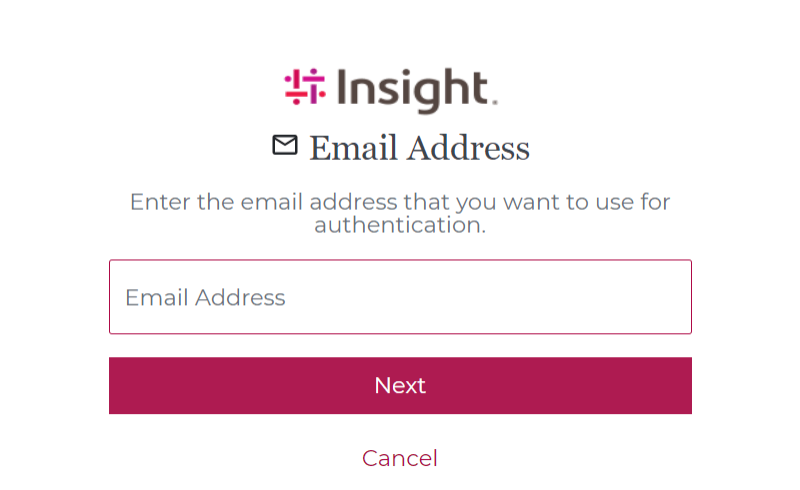
- Authenticator App
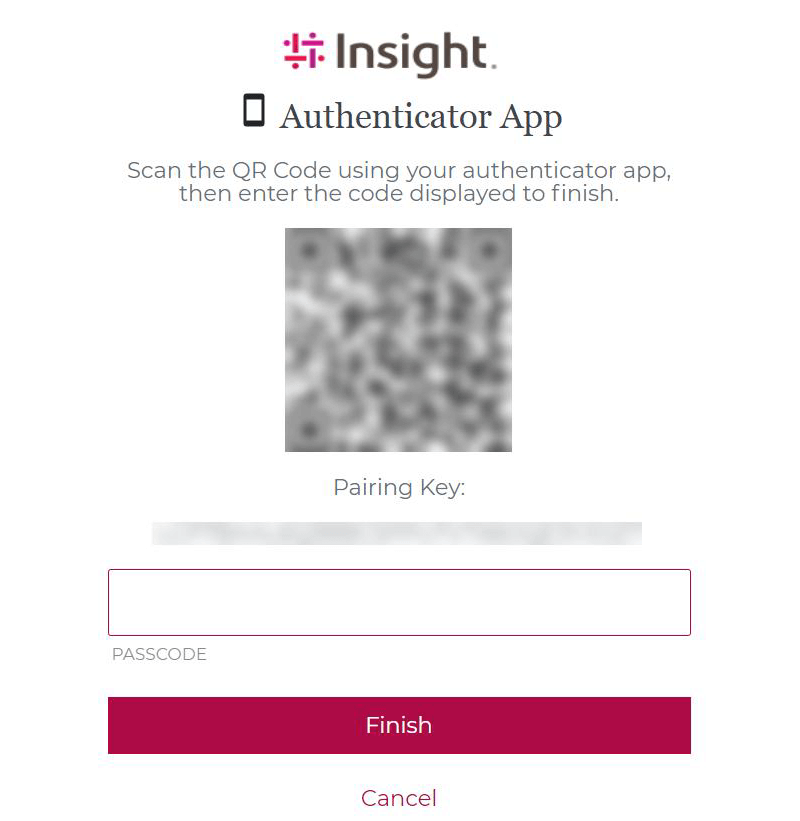
- Once you’ve completed enrollment, your available authentication methods will display on the Device Management screen
- The next time you log in, you will be prompted to authenticate through your preferred authentication method